Time Series Brush Slicer
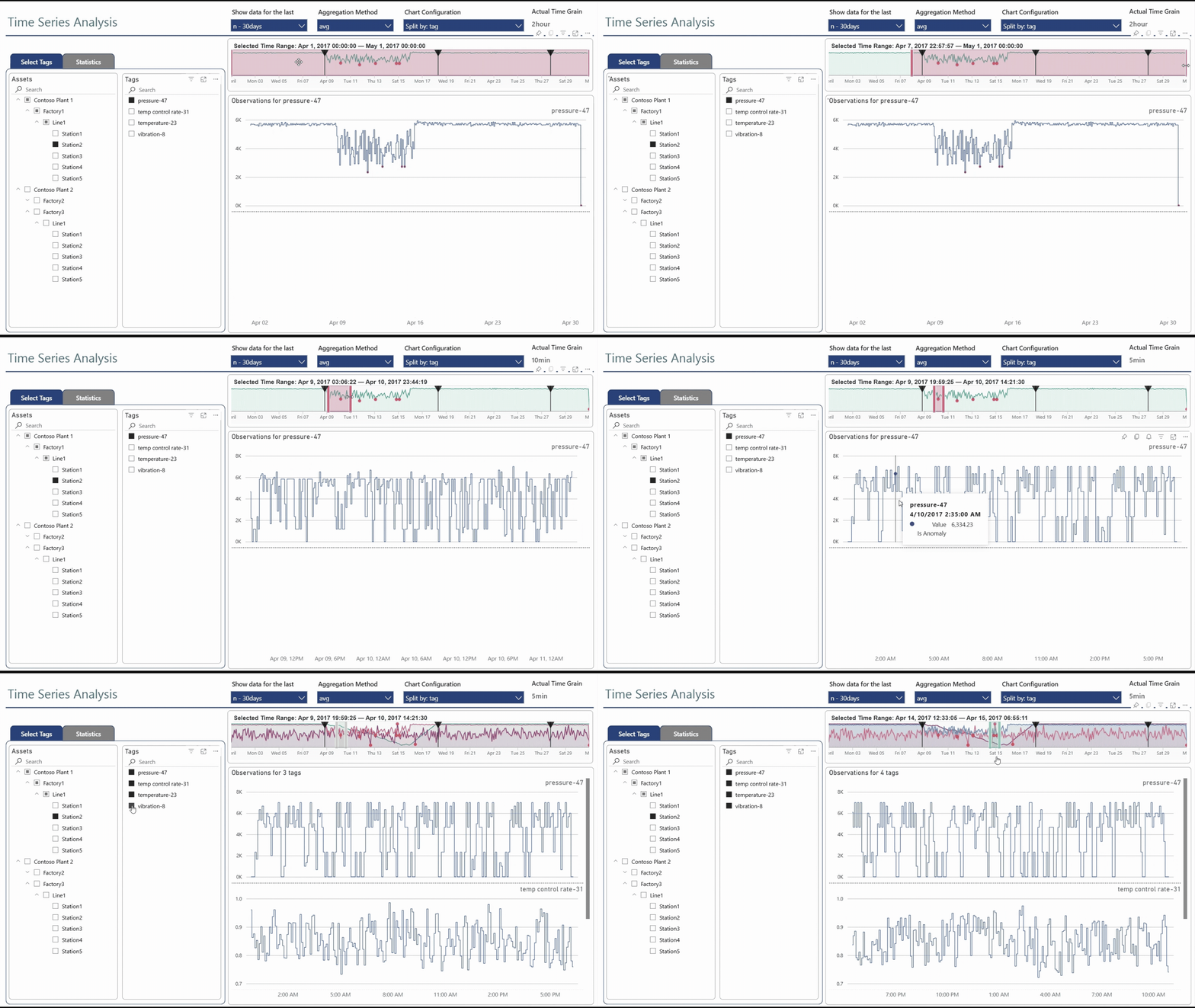
The Time Series Brush Slicer custom visual is the heart of the interactive experience. It displays your time series data as a Power BI chart and lets you brush (drag) to select time ranges.
Overview
The brush slicer enables intuitive time range selection by:
- Displaying a visual overview of your time series data
- Allowing click-and-drag selection of time ranges
- Outputting selection as a parameter for filtering other visuals
- Supporting anomaly markers and timeline events
What It Shows
Chart Types
| Type | Description |
|---|---|
| Line chart | Traditional time series line visualization |
| Area chart | Filled area under the line for emphasis |
| Combined | Line with area fill for maximum visibility |
Data Overlays
- Anomaly markers highlighting unusual data points
- Timeline markers for important events
- Multiple series compared on the same chart
Visual Customization
Style the visual to match your needs:
Chart Appearance
| Setting | Description |
|---|---|
| Line width | Thickness of the time series line |
| Line color | Color of the line |
| Area fill | Whether to show filled area |
| Opacity | Transparency of the area fill |
Axes Configuration
| Setting | Description |
|---|---|
| Show X-axis | Toggle visibility of the time axis |
| Show Y-axis | Toggle visibility of the value axis |
| Font family | Axis label font |
| Font size | Axis label size |
| Font color | Axis label color |
| Min/Max values | Fixed or auto-scaled axis ranges |
Brush Overlay
| Setting | Description |
|---|---|
| Selection color | Color of the selected region |
| Transparency | Opacity of the brush overlay |
| Handle style | Visual style of drag handles |
Conditional Formatting
Apply conditional formatting to:
- Color line segments based on data values
- Highlight specific time periods
- Emphasize anomalies or thresholds
How It Filters Data
Parameter Output
When you select a time range, the visual outputs a text string:
This string format consists of:
- Start date (ISO 8601 format)
- Pipe separator (
|) - End date (ISO 8601 format)
Integration with Dynamic M Query Parameters
flowchart LR
    A[User drags brush] --> B[Visual outputs parameter]
    B --> C[Power Query receives parameter]
    C --> D[KQL query constructed with date filter]
    D --> E[All visuals update]
The parameter is used as a Dynamic M Query Parameter in Power BI, which:
- Is parsed by Power Query functions
- Generates appropriate KQL date filters
- Ensures all visuals show only data from the selected period
Installation
The Time Series Brush Slicer is included in both solution variants as a custom visual. No separate installation is required when using the provided .pbip files.
Manual Installation
If you need to install the visual separately:
- Download the
.pbivizfile from the GitHub repository - In Power BI Desktop, go to Visualizations pane
- Click the ... menu and select Import a visual from a file
- Select the downloaded
.pbivizfile
Best Practices
Performance
Optimize Brush Slicer Performance
- Use appropriate aggregation in the data feeding the slicer
- Limit the number of series displayed in the brush
- Consider using a separate query for brush data vs. detail data
User Experience
Improve User Experience
- Place the brush slicer prominently at the top of the report
- Use clear labeling to indicate the time range
- Consider adding a "Reset" button to return to the initial range
- Show the selected time range in a text visual for clarity
Visual Design
Visual Design Recommendations
- Choose colors that contrast well with the brush overlay
- Ensure sufficient height for the slicer (at least 150px)
- Keep the brush slicer simple - save detail for other visuals
Troubleshooting
Common Issues
| Issue | Solution |
|---|---|
| Brush doesn't respond | Ensure the visual has valid data bindings |
| Parameter not updating | Check Dynamic M Query Parameter configuration |
| Performance is slow | Reduce data points or increase aggregation |
| Visual appears blank | Verify data source connectivity and permissions |
Getting Help
- Check the GitHub Issues for known problems
- Review the visual's documentation for configuration details
- Test with sample data to isolate the issue
Source Code
The Time Series Brush Slicer is open source. Visit the GitHub repository for:
- Source code
- Detailed documentation
- Issue tracking
- Contribution guidelines